Fake ChromeOS Update Screen
Loading chromeos update…
Key Features
Features of Fake ChromeOS Update Screen
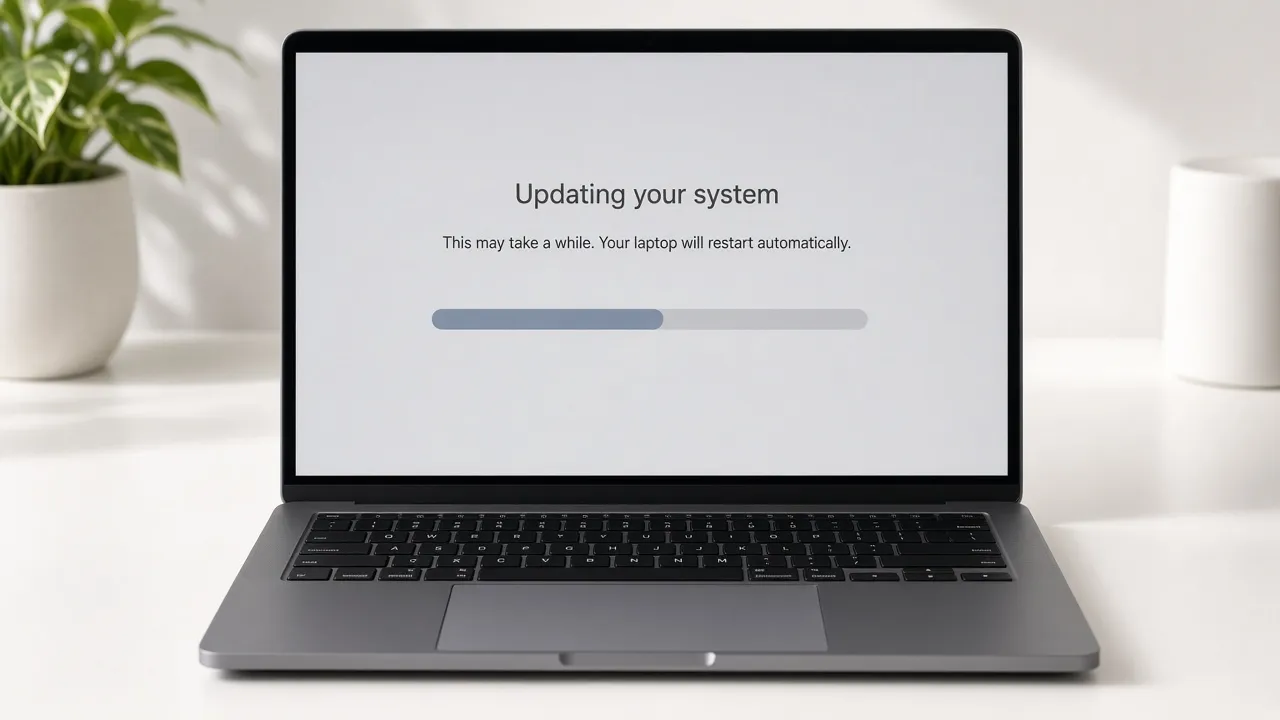
A ChromeOS-style picture whose first line reads Updating your Chromebook.
- 01
Chromebook wording on a dark page
The page background is dark gray, not a white Material card. The visible line is Updating your Chromebook.
- 02
Smooth Multi-Color Chrome Spinner
Features the smooth circular spinner animation characteristic of Chromebook boot and update recovery modes.
- 03
Realistic Progress Percentage
Simulates slow, realistic percentage increments that climb naturally to convince observers the update is actively processing.
- 04
One-Click True Fullscreen
Press F to hide all browser chrome, leaving an authentic full-screen Chromebook update interface.
- 05
100% Safe Browser Simulation
Runs completely in browser memory. Press Esc at any time to return immediately to your real desktop.
About & Principles
The Familiar Simplicity of Google ChromeOS Updates
ChromeOS is designed around effortless background updates. When a Chromebook applies a major operating system update or enters recovery verification, it displays a distinct minimalist interface: a centered Google Chrome spinner against a calm grey or white backdrop, accompanied by a clean progress percentage.
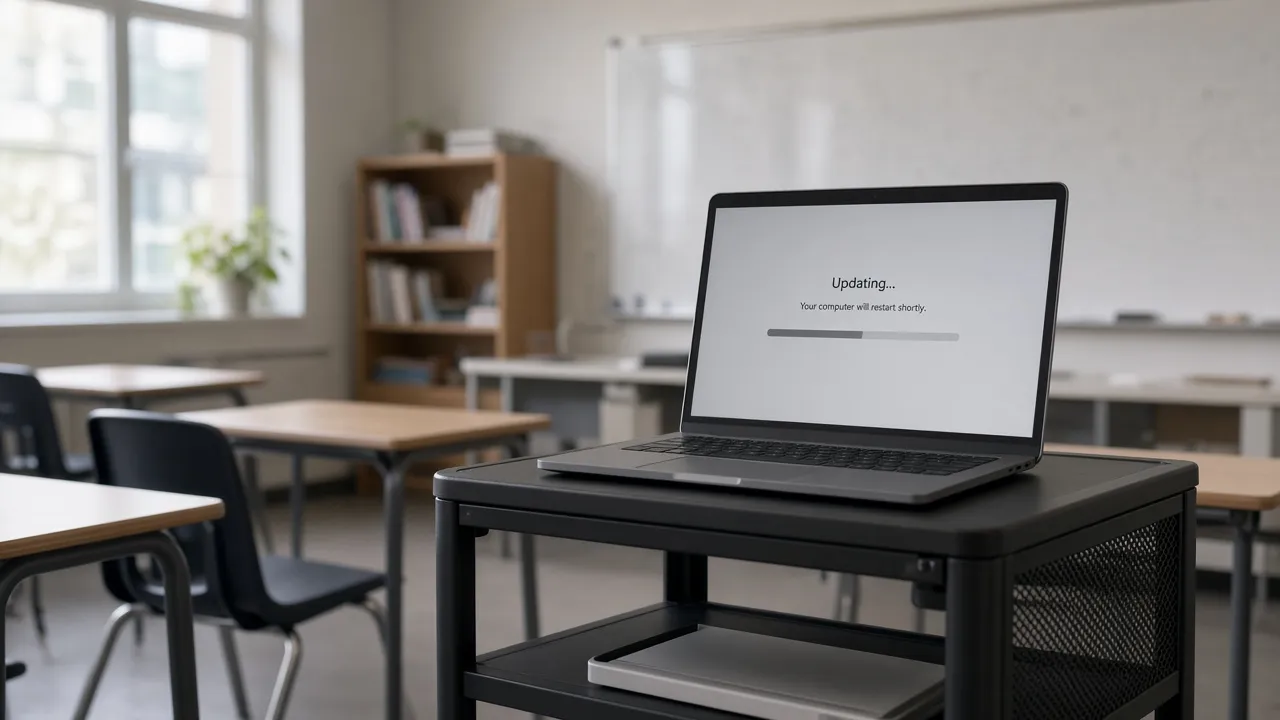
In educational environments and modern cloud-first enterprises, seeing a Chromebook in an update state is an indisputable reason why a student or remote employee cannot immediately access web apps or online coursework.
The Chromebook wording on screen is a costume; the tab does not download a ChromeOS image or restart a Chromebook. The type asks for Roboto and can fall back to Arial.
How to use it
How to use Fake ChromeOS Update Screen
Three simple steps. No install, no sign-up, no upload.
- 01
Open the ChromeOS update tool
Launch the simulator in any web browser on your PC, Mac, or Chromebook.
- 02
Press F for fullscreen
Tap F or click the Fake ChromeOS Update Screen preview to fill the screen. Esc leaves it.
- 03
Enjoy your break
Step away while onlookers assume your Chromebook is undergoing a mandatory system update.
- 04
Press Esc to exit
Tap Esc when you are ready to resume working immediately.
Why this tool
Why choose Fake ChromeOS Update Screen
Engineered for distraction-free performance, privacy, and zero latency.
- 01
Perfect for Schools & Google Workspaces
The ideal believable prank screen for educational institutions and businesses heavily reliant on Chromebooks.
- 02
Fullscreen screen lock
Ensures your display remains awake without dimming or sleeping during presentations or filming.
- 03
Zero Software Downloads
Runs instantly in modern web browsers without installing extensions or executable files.
- 04
Hilarious on Mac & Windows
Run full screen on a high-end Windows gaming laptop or MacBook Pro to confuse colleagues.
Practical Use Cases
What people use Fake ChromeOS Update Screen for
Real-world scenarios with tested setup parameters and operational guidance.
Classroom & Study Break Excuse
Believably step away from your study desk or library workstation while onlookers assume your Chromebook is updating.
SetupFullscreen · Auto-Awake On · School DeskActionPress F before stepping away.NoteDo not use during timed exams or critical evaluations.Chromebook Video & Review Prop
Capture authentic b-roll of a Chromebook system update for tech reviews, cloud computing demos, and video sketches.
Setup1080p / 4K Camera RecordingActionFilm crisp close-ups of the rotating spinner.NoteAdjust studio lighting to prevent glare on glossy screens.Office Coworker Harmless Prank
Switch a coworker’s Chromebook to the update screen during lunch to give them a brief, harmless startle.
SetupFullscreen · Esc hotkey readyActionPress F on their unlocked browser window.NoteQuickly reveal the joke before they contact the school or office IT desk.Educational Cloud OS Demonstrations
Demonstrate Chromebook recovery and update UX behavior during digital literacy training workshops.
SetupClassroom Projector FullscreenActionExplain seamless cloud OS maintenance concepts.NoteClarify that this is an online educational mockup.
Pro tips
Tips & limits
Honest notes from real-world use. No fluff.
- Note
Press F to enter fullscreen instantly and remove the browser address bar and tabs.
- Note
Hide your mouse pointer by pushing it off the right edge of the screen.
- Note
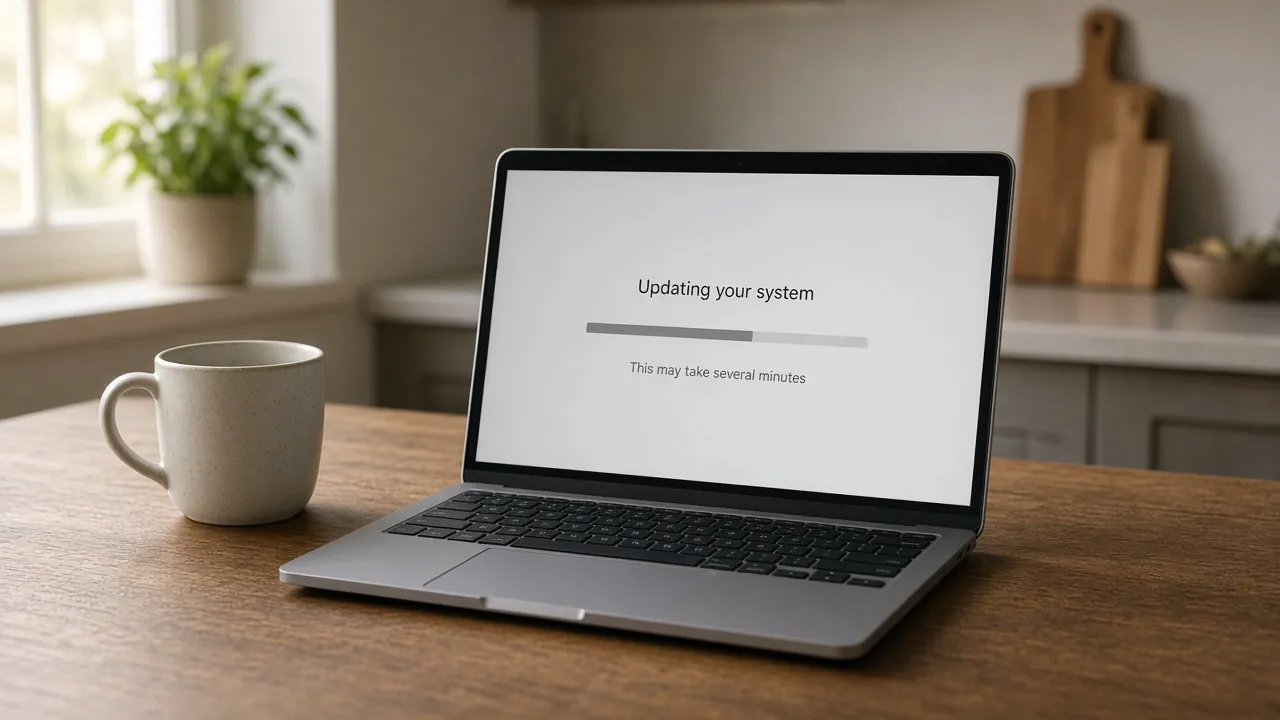
The progress bar advances slowly, mimicking real Google cloud package downloads.
- Note
Press Esc or tap the Fake ChromeOS Update Screen screen to leave fullscreen. The page does not time that exit.
FAQ
Frequently asked questions
Straight answers about how Fake ChromeOS Update Screen works.
Will this tool install any real updates or restart my Chromebook?
The Chromebook wording on screen is a costume; the tab does not download a ChromeOS image or restart a Chromebook. The ring and the bar are painted. Duration and Hold at progress only change that paint, and Restart redraws the tab.
How do I exit the fake ChromeOS update screen?
Press the Esc key on your keyboard or tap the top edge of your touchscreen device to immediately exit fullscreen. On the ChromeOS page the line reads Updating your Chromebook.
Can I display this on a Windows PC or Mac?
Yes! It runs in any web browser, making it hilarious to show a Chromebook update running on an Apple MacBook or Windows PC.
Does the progress counter actually increase?
Yes, the percentage slowly advances in realistic increments, simulating an active ChromeOS software update.
On Fake ChromeOS Update Screen, Keep screen awake starts checked, but the browser is asked to hold the display only while the page is fullscreen. If the browser refuses, the status line says the display may still dim. Closing the lid can still sleep the computer.
For Fake ChromeOS Update Screen, Keep screen awake starts checked, but the browser is asked to hold the display only while the page is fullscreen. If the browser refuses, the status line says the display may still dim. Closing the lid can still sleep the computer.
Is this simulator completely free for Fake ChromeOS Update Screen?
Yes, 100% free with no registration, no downloads, and no watermarks in fullscreen mode. On the ChromeOS page the line reads Updating your Chromebook.
Can I open this on multiple external monitors for Fake ChromeOS Update Screen?
Yes, click "Open in another window" in the display drawer to launch duplicate update screens across secondary displays.
What font does ChromeOS use for update screens?
This page lists Roboto and then Arial. If Roboto is not installed, the fallback is Arial.
Does it work offline without Wi-Fi for Fake ChromeOS Update Screen?
Yes, once loaded, the page assets run locally in your browser cache without requiring an active internet connection. On the ChromeOS page the line reads Updating your Chromebook.
Can I customize the update message?
The simulation displays the authentic canonical Google update wording for maximum real-world realism.
Ready when you are
Launch Fake ChromeOS Update Screen
Instant fullscreen mode in your browser — zero install, zero sign-up.
Go fullscreen