Fake Zoom Call Simulator
Loading zoom call…
Key Features
Features of Fake Zoom Call Simulator
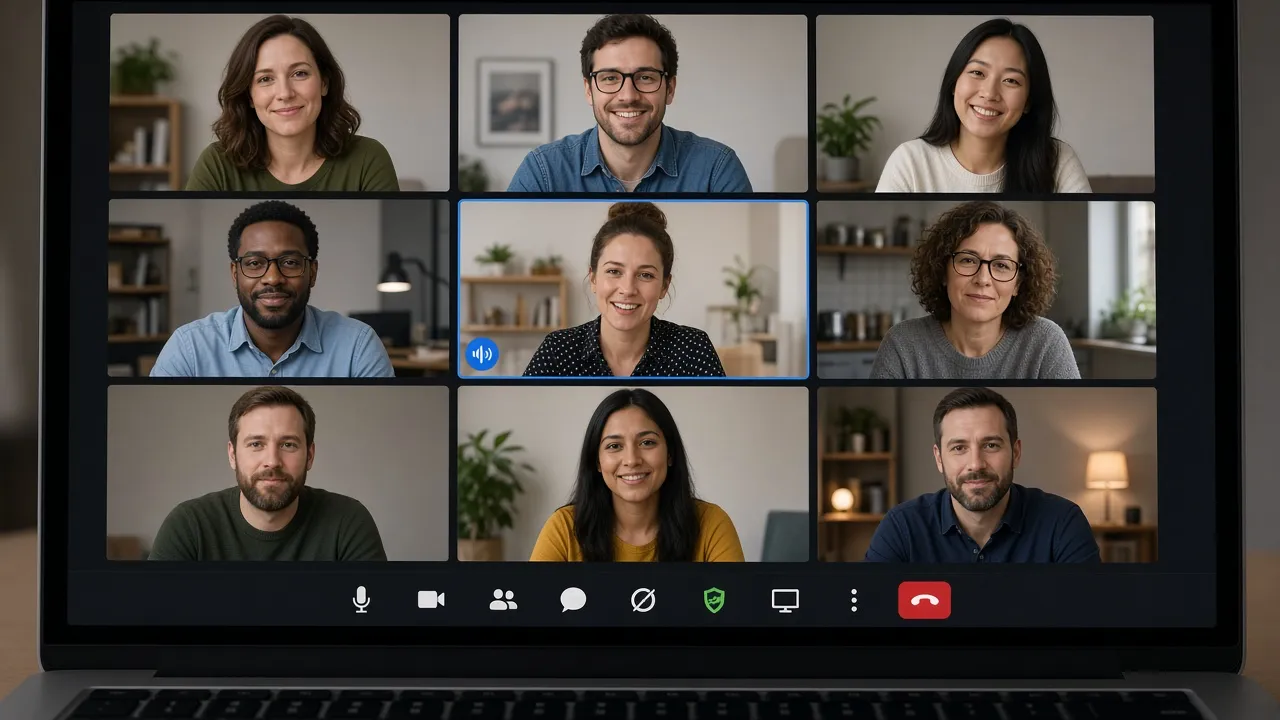
Realistic Zoom Cloud Meetings gallery interface with active speaker borders.
- 01
Authentic Zoom Interface Aesthetics
Features Zoom’s classic dark theme (#1A1A1A), bottom icon dock, and signature green Share Screen button.
- 02
Dynamic Participant Gallery Grid
Displays authentic webcam-style participant boxes with realistic name labels and microphone status indicators.
- 03
Active Speaker Border Simulation
Simulates live audio conversation by occasionally cycling glowing cyan speaker highlights across tiles.
- 04
Zero Camera or Mic Requirements
Operates safely in browser memory without ever prompting for hardware webcam or microphone permissions.
- 05
One-Click True Fullscreen Mode
Press F to hide all browser chrome, transforming your screen into a dedicated Zoom meeting desktop app.
About & Principles
The Power of the Zoom UI in the Remote & Hybrid Era
Zoom Cloud Meetings revolutionized corporate remote work and remains the most recognizable video conferencing platform on earth. Its trademark design—dark charcoal grey canvas (#1A1A1A), bottom floating control dock with the prominent green "Share Screen" button, and participant video tiles with cyan active-speaker boxes—is instinctively respected everywhere.
When coworkers or housemates see a Zoom meeting active on your screen, they instinctively speak in hushed tones, step away, and avoid disturbing you. It is the ultimate digital "Do Not Disturb" sign.
Our online fake Zoom call simulator provides an exact replica of this interface. Operating without camera permissions or software installations, it delivers an instant, airtight illusion of a high-stakes client conference.
How to use it
How to use Fake Zoom Call Simulator
Three simple steps. No install, no sign-up, no upload.
- 01
Open the fake Zoom tool
Open Fake Zoom Call Simulator in the browser you already have. Nothing is installed.
- 02
Press F for fullscreen
Tap F or click the Fake Zoom Call Simulator preview to fill the screen. Esc leaves it.
- 03
Wear your headset
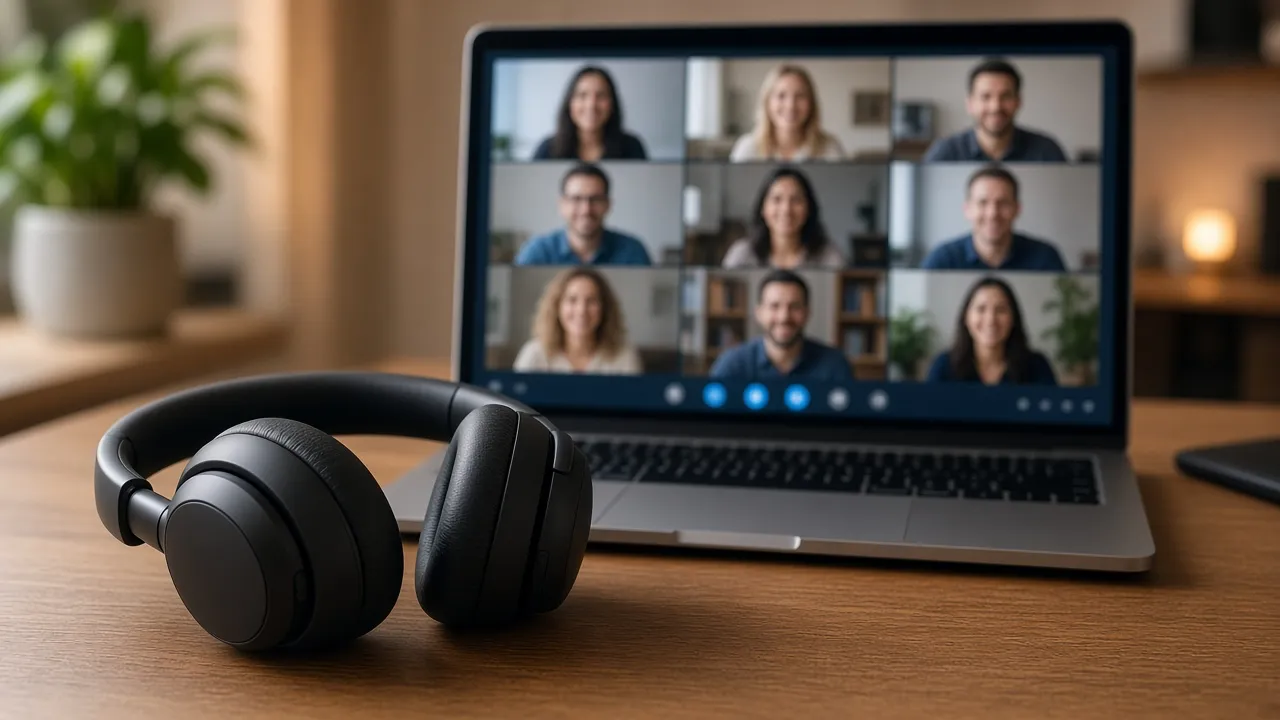
Put on your headset and focus on your work; everyone will assume you are in a Zoom conference.
- 04
Press Esc to exit
Hit Esc to leave the Fake Zoom Call Simulator picture. The real meeting app is unchanged.
Why this tool
Why choose Fake Zoom Call Simulator
Engineered for distraction-free performance, privacy, and zero latency.
- 01
Instant Universal Recognition
Everyone knows Zoom. Seeing the familiar bottom toolbar ensures immediate respect for your quiet time.
- 02
Complete Privacy & Security
No real video streams, no network data transfer, and no security permissions needed.
- 03
Fullscreen screen lock
While Fake Zoom Call is the open tab, Keep screen awake starts checked, but the browser is asked to hold the display only while the page is fullscreen. If the browser refuses, the status line says the display may still dim. Closing the lid can still sleep the computer.
- 04
Zero Software Installation
Runs instantly in modern web browsers without downloading heavy desktop clients or mobile apps.
Practical Use Cases
What people use Fake Zoom Call Simulator for
Real-world scenarios with tested setup parameters and operational guidance.
Workplace Focus & Do-Not-Disturb Cloak
Deter walk-in interruptions in open offices and shared spaces when you need uninterrupted focus time.
SetupFullscreen · Secondary Monitor · Headset OnActionLaunch full screen before diving into deep tasks.NoteEnsure team members know you are reachable by Slack if critical.Film & Comedy Video Sketches
Provide actors with a realistic Zoom call interface for remote work comedy sketches and indie film scenes.
Setup1080p / 4K Monitor · Studio LightingActionRecord actors interacting with the Zoom gallery.NoteKeep ambient room reflections off the monitor.Polite Exit from Impromptu Hangouts
Need to politely step away from roommates or social situations? A scheduled Zoom call provides an unimpeachable exit.
SetupLaptop on Table · Active Speaker GlowingActionExcuse yourself to attend an urgent meeting.NoteUse tactfully for polite boundary setting.Remote Collaboration Training Demos
Demonstrate video conference etiquette, screen sharing concepts, and gallery navigation in training seminars.
SetupClassroom Projector FullscreenActionWalk through Zoom toolbar features and meeting management.NoteSay that Fake Zoom Call Simulator is a browser picture before you point a camera at it.
Pro tips
Tips & limits
Honest notes from real-world use. No fluff.
- Note
Put on a headset or earbuds while this screen is active to make the illusion 100% convincing.
- Note
Press F to enter fullscreen mode and hide all browser tabs and operating system taskbars.
- Note
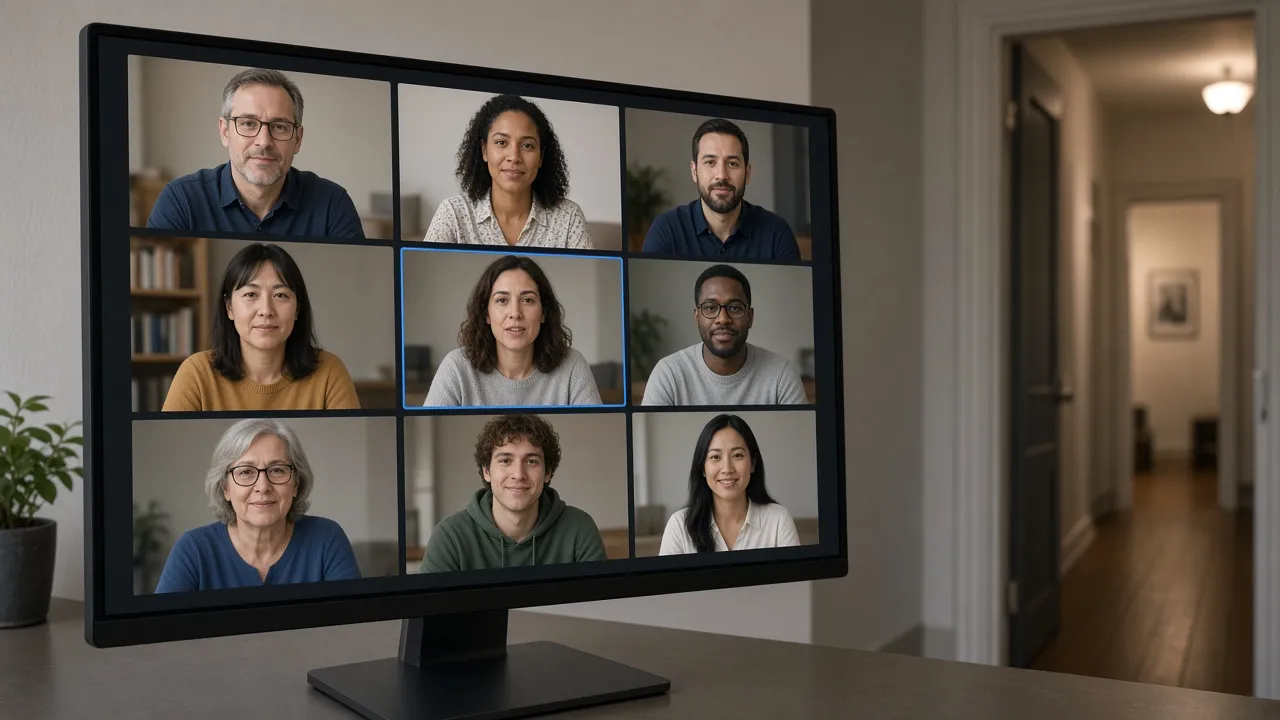
The glowing speaker box moves realistically, convincing anyone glancing at your screen that someone is talking.
- Note
Press Esc or tap the Fake Zoom Call Simulator screen to leave fullscreen. The page does not time that exit.
FAQ
Frequently asked questions
Straight answers about how Fake Zoom Call Simulator works.
Does this sign me into Zoom or mark me as in a meeting?
This screen does not sign you into Zoom or mark you as in a meeting, so a coworker looking at the real Zoom app will not see you there.
Does this fake Zoom call connect to the real Zoom service?
No. This is purely an in-browser visual mockup. It does not connect to Zoom servers, require an account, or transmit any audio or video data.
How do I exit fullscreen mode for Fake Zoom Call Simulator?
Press the Esc key on your keyboard or tap the top edge of your touchscreen device to immediately exit fullscreen. On the Zoom-style page the gallery is drawn here and Zoom is not contacted.
Does this tool request access to my webcam or microphone for Fake Zoom Call Simulator?
No. The simulator never requests camera or microphone permissions. It runs entirely on client-side vector and CSS visual assets.
Can I run this on a second monitor while working on my laptop screen?
Yes! Move the browser window to your external monitor and press F for fullscreen to look occupied while continuing your real work on your main screen. On the Zoom-style page the gallery is drawn here and Zoom is not contacted.
On Fake Zoom Call Simulator, Keep screen awake starts checked, but the browser is asked to hold the display only while the page is fullscreen. If the browser refuses, the status line says the display may still dim. Closing the lid can still sleep the computer.
For Fake Zoom Call Simulator, Keep screen awake starts checked, but the browser is asked to hold the display only while the page is fullscreen. If the browser refuses, the status line says the display may still dim. Closing the lid can still sleep the computer.
Is this simulator completely free to use for Fake Zoom Call Simulator?
Yes, 100% free with no registration, no app downloads, and no watermarks in fullscreen mode. On the Zoom-style page the gallery is drawn here and Zoom is not contacted.
Does the fake call include audio or speaking sounds for Fake Zoom Call Simulator?
The call runs silently by default so it never disrupts your office environment or interferes with your actual audio playback. On the Zoom-style page the gallery is drawn here and Zoom is not contacted.
Can I display this on a MacBook or iPad for Fake Zoom Call Simulator?
Yes! It runs in any web browser across macOS, iPadOS, iOS, Windows, Android, and Linux. On the Zoom-style page the gallery is drawn here and Zoom is not contacted.
Does this page work offline for Fake Zoom Call Simulator?
Yes, once loaded, all assets are cached in your browser, allowing the simulation to run without an active internet connection. On the Zoom-style page the gallery is drawn here and Zoom is not contacted.
Can I use this for video production and streaming for Fake Zoom Call Simulator?
Yes, filmmakers and content creators are welcome to use this simulator as a royalty-free digital prop. On the Zoom-style page the gallery is drawn here and Zoom is not contacted.
Ready when you are
Launch Fake Zoom Call Simulator
Instant fullscreen mode in your browser — zero install, zero sign-up.
Go fullscreen